Adding RTL (Arabic/Hebrew) Support to a React Native App
What it really takes to make a React Native app work in Arabic and Hebrew, from layout mirroring to the icon and gesture details teams always miss.
 SprintX Team9 min read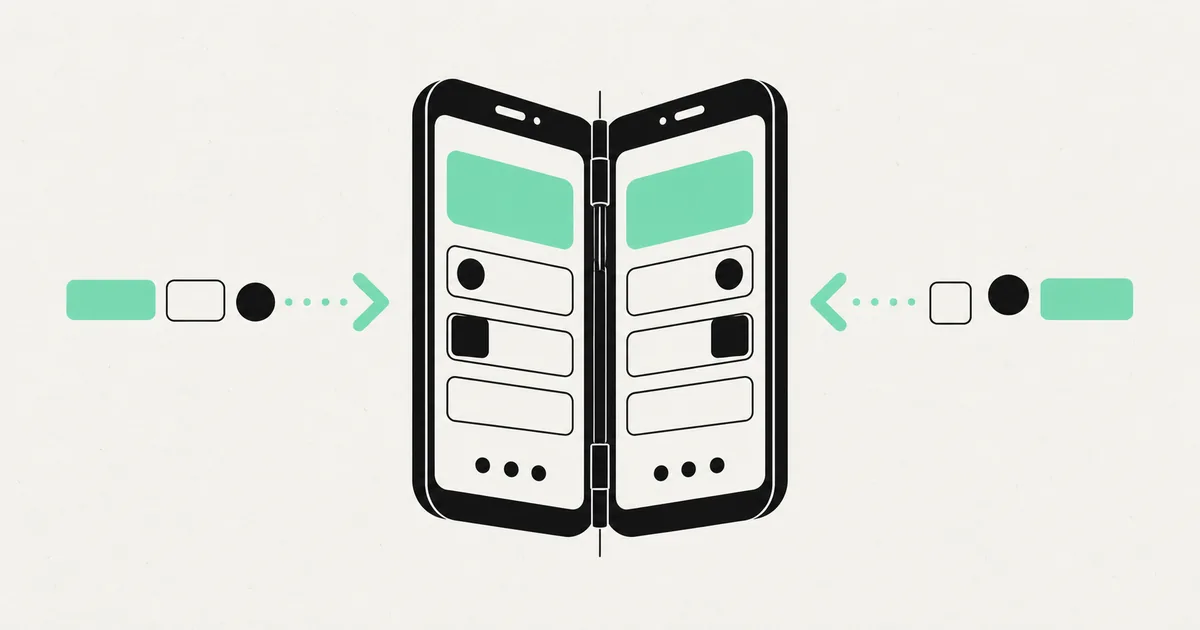
You built a clean React Native app, it works perfectly in English, and then a client in Dubai or Tel Aviv asks the obvious question: can it work in Arabic? You translate the strings, flip the app to test it, and the layout falls apart. Back buttons point the wrong way, chat bubbles land on the wrong side, and a progress bar fills backwards. Right-to-left support is not a translation task — it is a layout task, and it catches almost every team off guard.
Getting RTL right matters commercially. Arabic and Hebrew together reach a large, high-value market, and users there notice instantly when an app was clearly bolted on rather than built for them. Here is what RTL actually involves in React Native, in the order that keeps you out of trouble.
RTL is layout mirroring, not just translation
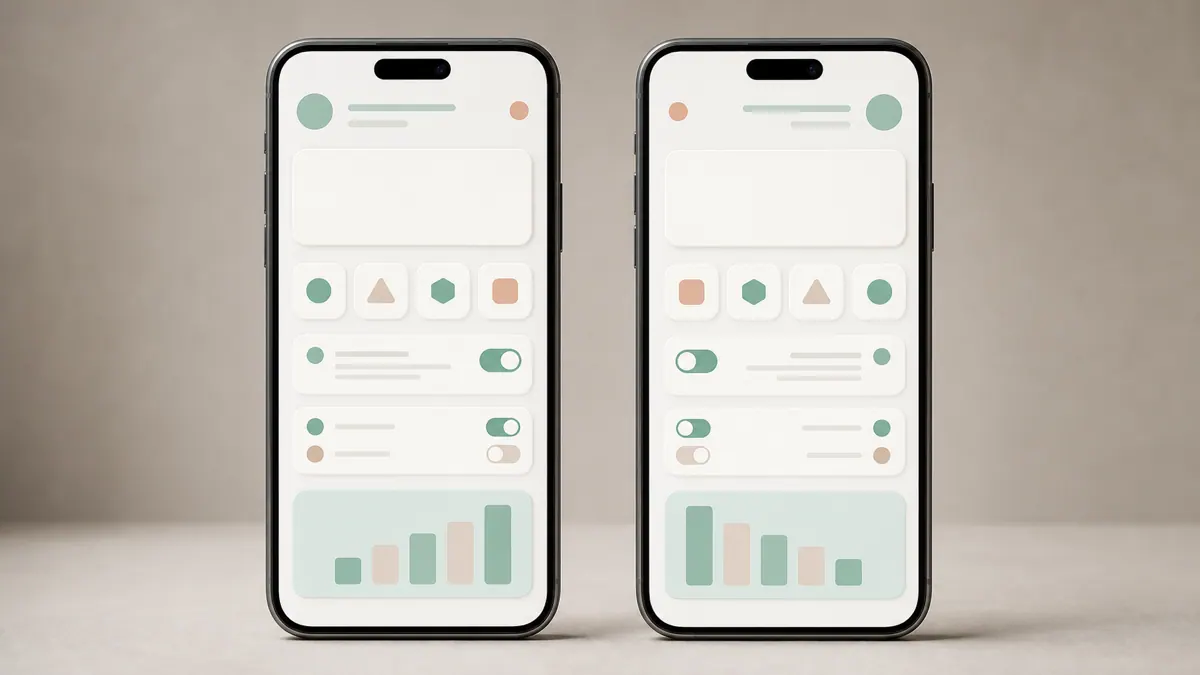
The core idea: in a right-to-left language, the entire interface should mirror. Reading starts on the right, so navigation, alignment, and flow all flip. A back arrow points right, the menu icon moves to the right edge, list items align right, and horizontal progress fills right to left. Translating the words without mirroring the layout produces an app that reads wrong and feels broken to a native speaker.
The good news is that React Native was built with this in mind. Its layout engine understands direction-aware properties, so if you build correctly from the start, a huge amount of mirroring happens automatically. The bad news is that "if you build correctly" hides a list of specific habits, and a codebase written without them will need cleanup.
Turning RTL on the right way
React Native exposes RTL control through I18nManager. You force or allow RTL, and on a real device the OS mirrors the layout for you.
The critical detail teams miss: switching RTL requires a full app reload to take effect — it is not a live toggle. In practice you set the direction based on the selected language, then reload. Because of that reload requirement, RTL is best decided at app launch based on the user's language, not flipped mid-session with a switch. Test this on a real device or a proper simulator, because the mirroring behavior does not always show up faithfully in every preview environment.
The habits that make mirroring automatic
This is where most of the work lives. Build with direction-aware properties and the framework mirrors your UI for free; hard-code physical sides and you fight it on every screen.
| Instead of | Use | Why |
|---|---|---|
marginLeft / marginRight | marginStart / marginEnd | Flips automatically with direction |
paddingLeft / paddingRight | paddingStart / paddingEnd | Same — respects RTL |
left / right positioning | start / end | Anchors to the reading side, not a fixed edge |
textAlign: 'left' | textAlign: 'auto' (or omit) | Aligns to the language direction |
Fixed flexDirection: 'row' | Let it mirror, or handle explicitly | Row order should reverse in RTL |
Adopt start/end everywhere and the framework does the heavy lifting. The one thing you almost never want to touch is text alignment for the content itself — let it follow the language rather than pinning it left.
The gotchas that survive the automatic mirroring
Even with perfect layout properties, a handful of things do not flip themselves and will look wrong until you handle them deliberately.
- Directional icons. Back arrows, forward chevrons, send arrows, and "next" indicators point the wrong way after mirroring unless you flip the icon itself. Symmetric icons (a gear, a heart, a home) are fine and must be left alone.
- Numbers and phone fields. Numbers stay left-to-right even inside Arabic text. Phone numbers, prices, and code inputs need care so digits do not get scrambled by aggressive mirroring.
- Gestures and animations. A swipe-to-delete or a slide-in that assumes left-to-right will feel backwards. Direction-dependent animations need their direction inverted in RTL.
- Custom-drawn components. Anything you position with absolute coordinates, canvas drawing, or manual math will not mirror on its own — you own that logic.
- Third-party libraries. Not every component library handles RTL well. Charts, carousels, and custom sliders are common offenders and need testing, not assumption.
- Mixed content. An Arabic sentence with an English brand name or a URL in it mixes directions; the text engine mostly handles this, but test real content, not lorem ipsum.
The pattern is clear: layout mirrors for free if you built it right, but meaning-carrying direction — arrows, gestures, custom drawing — is your job. Budget for it rather than discovering it in QA.
Doing it once, cleanly
The cheapest RTL is the one you plan for. If you are early, adopt start/end spacing and auto text alignment as house style from day one, keep every user-facing string in a translation file, and test one screen in Arabic before you have fifty. Retrofitting RTL onto a mature app built with hard-coded left/right values is real work — not impossible, but a proper pass across the codebase rather than a config flag.
This is exactly the kind of detail that separates an app built for a global audience from one built for a demo, and it is core to how we approach React Native app development for founders who plan to ship beyond one market. If your app is already built and RTL was an afterthought, it also fits the broader pattern of taking an app the last mile to production-ready — the topic our project rescue work centers on.
Frequently asked questions
Does React Native support RTL out of the box?
Largely, yes. Through I18nManager and direction-aware layout properties, React Native mirrors most of your UI automatically — provided you used start/end spacing and let text alignment follow the language instead of hard-coding left and right.
Why does my layout not flip when I enable RTL?
Two common reasons: you are using left/right and marginLeft/marginRight instead of the start/end equivalents, or you did not reload the app. RTL changes require a full reload to take effect, not a live toggle.
Do I have to flip my icons manually? Directional ones, yes — back arrows, chevrons, and send arrows must be mirrored explicitly. Symmetric icons like a gear or a home icon should be left as they are, or they will look odd.
Is it harder to add RTL to an existing app? It is more work than building with RTL from the start, mainly because hard-coded left/right values have to be found and replaced throughout the codebase. It is very doable as a focused pass, but plan for testing across every screen.
Expanding into Arabic or Hebrew markets and worried your app will read backwards? SprintX builds and retrofits React Native apps with proper RTL support — layout mirroring, directional icons, gestures, and real-content testing, done once and done right. Fixed-scope quote, you own the result, no lock-in. Get in touch and we will scope your RTL pass.
Building software
Systems your business runs on.
Custom platforms, internal tools and integrations that move work off spreadsheets.
Keep reading.
More on building software
Building software · 11 Jul 2026 · 9 min read
React Native App Development: A Founder's 2026 Guide
A founder-friendly guide to React Native app development in 2026 — what it is good at, where it is not, what it costs, and how a real build comes together.
Building software · 18 Jul 2026 · 8 min read
React Native App Development Cost in 2026
A clear, no-hype breakdown of what a React Native app actually costs to build in 2026 — from an MVP to a complex, integration-heavy product.
Building software · 18 Jul 2026 · 8 min read
Mobile App Development Services (UK) — Fixed-Scope Builds
A straight guide to mobile app development services for UK businesses in 2026 — fixed-scope builds, real timelines, and what actually drives the quote.